
Flutter Quick Start
Get started with Volume in under 5 minutes and start accepting payments in your Flutter app.
The Volume Flutter SDK provides ready-made UI components that make it easy to display the checkout button and handle the payment flow seamlessly.
1. Installation
Add the following dependency to your pubspec.yaml:
dependencies:
  flutter:
    sdk: flutter
  volume_sdk:
    git:
      url: https://<GIT_AUTHORIZATION>@github.com/getvolume/VolumePubDev.git
      ref: 3.5.0
Where GIT_AUTHORIZATION is an environment variable containing your GitHub user and token, in the format:
volume-public:<token>
This token is provided by Volume. Example:
volume-public:github_pat_72A4HWM8I0LwB3_T0kenProv1dedByV0lume__V3o9ZRvFBM5cmENW8vf8ES365KNJ7b6u7gY1
2. Volume Provider Setup
The VolumeProvider should be initialized at the root of your application. This provides global configuration for all Volume functionality.
Minimal setup
import 'package:volume_sdk/volume_provider.dart';

void main() {
  const myApp = MyApp();
  VolumeProvider.init(
    VolumeSetup(
      applicationId: "", // Provided by Volume
      volumeEnvironment: "sandbox",
    ),
    myApp,
  );
  runApp(myApp);
}
Verbose setup
import 'package:volume_sdk/volume_provider.dart';

void main() {
  const myApp = MyApp();
  VolumeProvider.init(
    VolumeSetup(
      applicationId: "", // Provided by Volume
      volumeEnvironment: "sandbox",
      showSandboxBanks: true,
      maxPaymentAmount: "15000",
      minPaymentAmount: "1",
    ),
    buttonCustomisation: const ButtonCustomization(),
    translations: {
      "en": const VolumeTranslations(
        accountHolderNameText: "Name and Surname",
      ),
      "de": const VolumeTranslations(
        accountHolderNameText: "Name und Nachname",
      ),
    },
    language: "en",
  );

  // Optional: change language at runtime
  VolumeProvider.setLanguage("de");

  runApp(myApp);
}
3. Adding the Volume Button
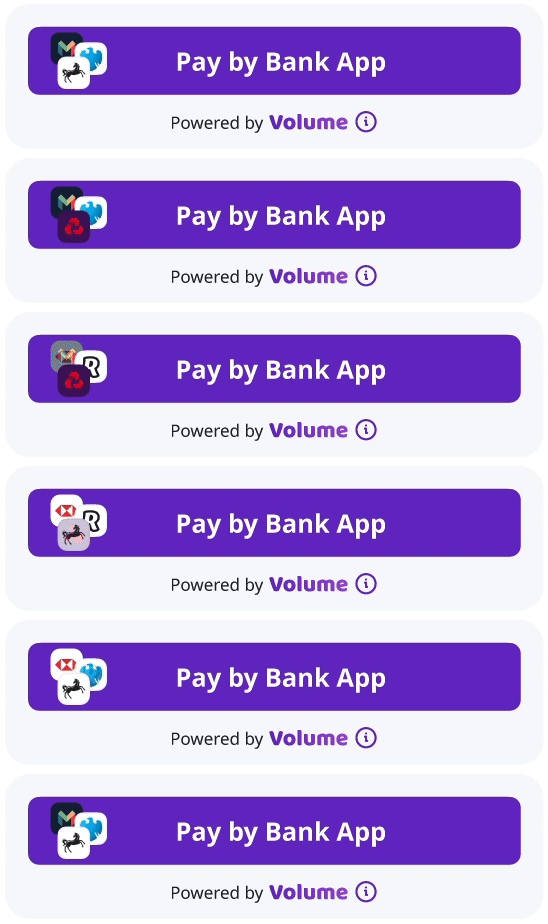
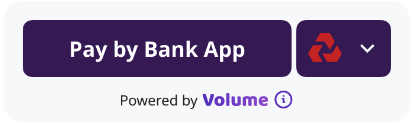
The VolumePaymentButtonWidget is the main checkout button.
For first-time users, the button opens the bank selector.
For returning users, the last-used bank is preselected automatically.
Example usage
var merchantPaymentId = generateMerchantPaymentId();

@override
void initState() {
  super.initState();
  _volumeButtonEventListener = VolumeButtonEventListener((value) {
    setState(() {
      merchantPaymentId = value;
    });
  });
}

VolumePaymentButtonWidget(
  merchantPaymentId: merchantPaymentId, // Must be unique per payment
  reference: "Example Reference",
  amount: 50.0,
  isEnabled: true,
  currency: "GBP",
  country: "GB",
  volumeEventListener: volumeButtonEventListener,
  merchantProvidedPayerDetails: MerchantProvidedPayerDetails(
    email: "john.doe@example.com",
    name: "John Doe",
    phone: "+44 20 7946 0958",
    account: PayerAccount(
      holderName: "John Doe",
      accountNumber: "12345678",
      sortCode: "123456",
      iban: "DE89370400440532013000",
    ),
    address: PayerAddress(
      addressLine1: "123 Main Street",
      addressLine2: "Apt 4B",
      countryCode: "GB",
      town: "London",
      postCode: "SW1A 1AA",
    ),
    useForUxFlowOptimisation: true,
  ),
  metadata: <String, dynamic>{
    "type": "shirt",
    "color": "black",
    "owner": {
      "position": "CTO",
      "description": "Very handsome man",
      "details": {
        "name": "John",
        "surname": "Doe",
      },
      "relatedItems": [
        {"itemName": "trousers", "color": "blue"},
        {"itemName": "shoes", "color": "white"},
      ],
    },
  },
);

String generateMerchantPaymentId() {
  return "This should be a unique value"; // TODO: fetch from backend
}

class VolumeButtonEventListener implements VolumeEventListener {
  final void Function(dynamic value) onNavigateToPaymentConsent;
  const VolumeButtonEventListener(this.onNavigateToPaymentConsent);

  @override
  onEvent(VolumeEvent event) {
    switch (event.runtimeType) {
      case NavigateToPaymentConsent:
        onNavigateToPaymentConsent(generateMerchantPaymentId());
        return;
    }
  }
}
Available Countries
Country | Code | Currency |
|---|---|---|
United Kingdom | GB | GBP |
Germany | DE | EUR |
France | FR | EUR |
Netherlands | NL | EUR |
Spain | ES | EUR |
Belgium | BE | EUR |
Advanced Features
🔹 Regenerating Merchant Payment ID
Every time VolumeEvent.NavigateToPaymentConsent is emitted, you must provide a new, unique MerchantPaymentId.
🔹 PaymentIdentifiersProvider (Optional)
You can render the Volume button before creating a payment on your backend by using the PaymentIdentifiersProvider.
This will request identifiers when the user clicks the button.
class VolumePaymentIdentifiersProvider extends PaymentIdentifiersProvider {
  @override
  Future<PaymentIdentifiers> providePaymentIdentifiers() async {
    try {
      var merchantPaymentIdFromBackend = "123"; // Fetch from backend
      var referenceFromBackend = "ref123";
      return PaymentIdentifiers(
        merchantPaymentId: merchantPaymentIdFromBackend,
        reference: referenceFromBackend,
      );
    } catch (e) {
      return PaymentIdentifiers(
        merchantPaymentId: "",
        reference: "",
        errorMessage: e.toString(),
      );
    }
  }
}

VolumePaymentButtonWidget(
  amount: amount,
  currency: currency,
  country: country,
  isEnabled: true,
  volumeEventListener: _volumeButtonEventListener,
  paymentIdentifiersProvider: VolumePaymentIdentifiersProvider(),
)
Merchant Provided Payer Details
Use merchantProvidedPayerDetails to pre-fill payer info, improving UX and enabling Confirmation of Payer.
Benefits:
Faster checkout (auto bank detection with IBAN)
Higher conversion (reduced friction)
Confirmation of Payer for compliance
[Full property tables and examples included above]
4. Bank Detection on iOS
Apple requires you to declare supported banking apps in your app’s Info.plist:
<key>LSApplicationQueriesSchemes</key>
	<array>
		<string>BMBGB</string>
		<string>revolut</string>
		<string>natwestbank</string>
		<string>monzo</string>
		<string>santanderretail</string>
		<string>rbs</string>
		<string>lloyds-retail</string>
		<string>ukcomhsbcmobilebanking</string>
		<string>zappcfi437759</string>
		<string>hsbc-pwnwguti5z</string>
		<string>zapp</string>
		<string>launchAIB</string>
		<string>ie.aib.mobilebanking</string>
		<string>BOIOneAPP</string>
		<string>halifax-retail</string>
		<string>starlingbank</string>
		<string>tescobank</string>
		<string>tsbmobile</string>
		<string>sparda-app</string>
		<string>bankingappspardaproduktion</string>
		<string>secureappspardaproduktion</string>
		<string>sapp-pushtan</string>
		<string>sapp-invest</string>
		<string>de.sparda.securego</string>
		<string>bos-retail</string>
		<string>launchbca</string>
		<string>comfirstdirectbankingonthego</string>
		<string>cs-com.virginmoney.uk.mobile.ios</string>
		<string>transferwise</string>
		<string>ybssavings</string>
		<string>chase-international</string>
	</array>
This allows Volume to detect installed banking apps and only display relevant ones.
5. Testing
Always start with the sandbox environment.
Sandbox payments open in the browser (not the banking app).
User experience differs per bank.
👉 Use the provided Sandbox Bank Credentials for testing with Natwest and other banks.
For support, contact support@getvolume.com or use live chat.
VolumeEvent
The VolumeEvent class represents different events that occur during the payment flow in the Volume Flutter SDK.
1. PaymentInitiated
'PaymentInitiated'
Description:
This event is triggered when a payment is successfully initiated.
2. NavigateToPaymentConsent
'NavigateToPaymentConsent'
Description:
Triggered when the payment consent is ready.
The user will be navigated to their banking app to approve the payment.
3. PaymentError
'PaymentError'
Description:
Occurs when a payment fails due to bank-specific rules or errors.
Payload:
message: A descriptive error message.exception(optional): Additional exception details.
4. GenericError
'GenericError'
Description:
Occurs when any error related to the Volume Flutter SDK happens, e.g., failing to download the list of supported banks from the server.
Payload:
EventErrorobject containing:message: Description of the error.error: Underlying error object.
5. PaymentAmountTooSmall
'PaymentAmountTooSmall'
Description:
Triggered when the payment amount provided is smaller than the allowed minimum.
6. PaymentAmountTooLarge
'PaymentAmountTooLarge'
Description:
Triggered when the payment amount provided exceeds the allowed maximum.